
Menu & Icon

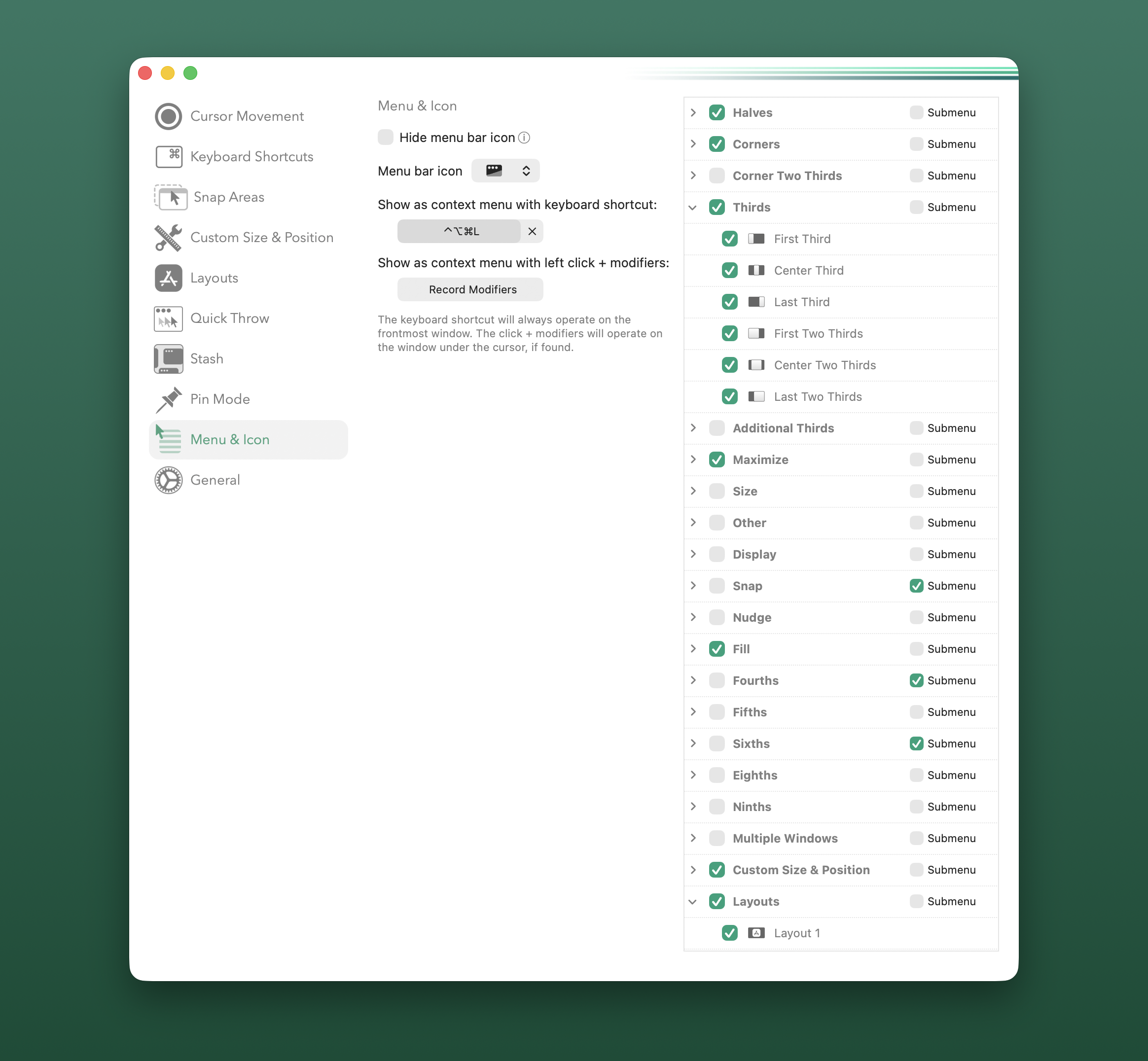
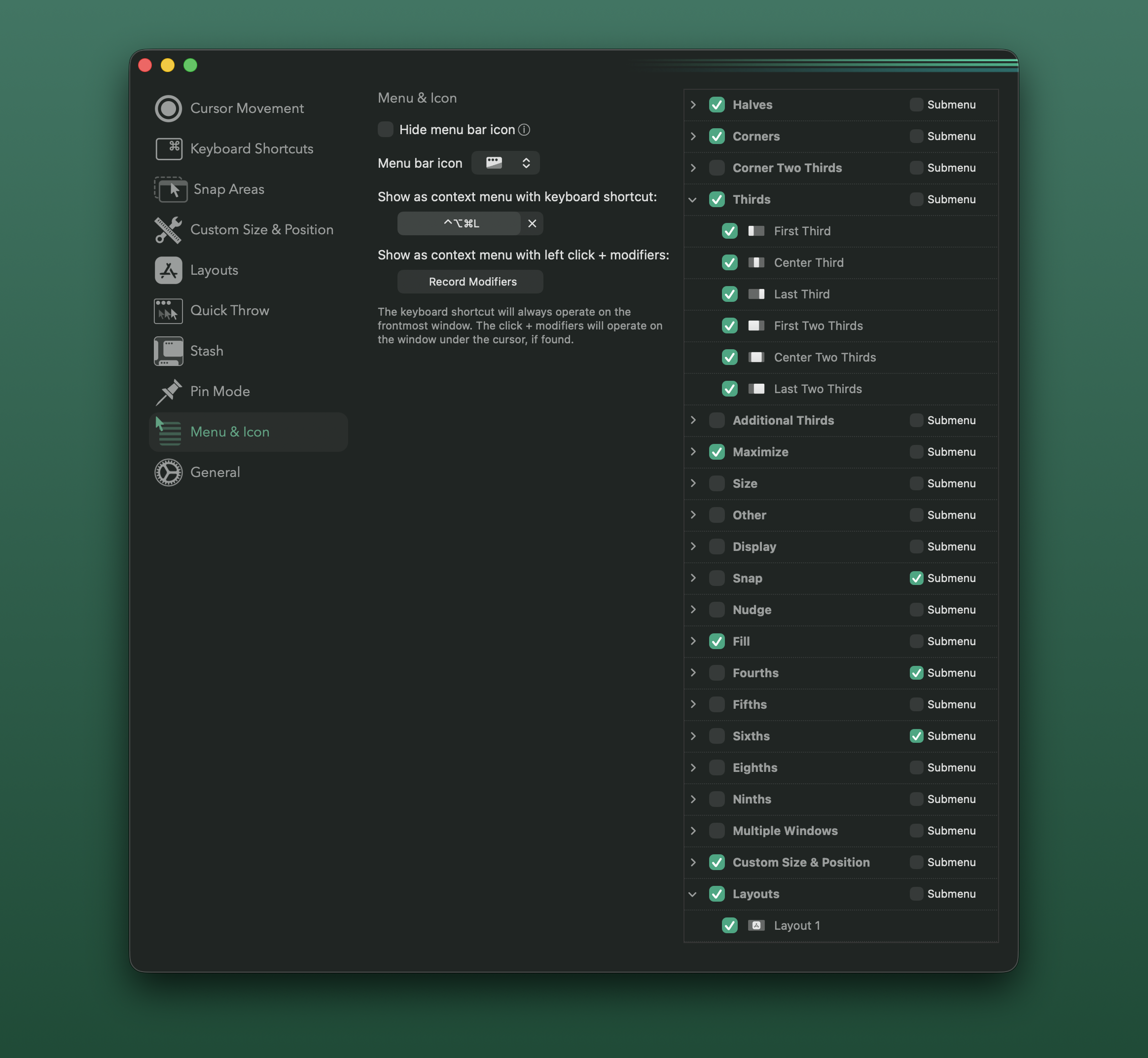
Configure the menu bar menu and the menu bar icon for Rectangle Pro. Select which items appear in the menu, and configure showing the menu using a keyboard shortcut or a mouse click.
Menu Bar Icon
Section titled “Menu Bar Icon”Hide menu bar icon: When the menu bar icon is hidden, relaunch Rectangle Pro while it’s running to show the settings window.Menu bar icon: Pick Rectangle Pro menu bar icon variations. The second option is the Hookshot icon.
Showing the Menu Outside of the Menu Bar
Section titled “Showing the Menu Outside of the Menu Bar”-
Show as context menu with keyboard shortcut: This keyboard shortcut will always operate on the frontmost window. -
Show as context menu with left click + modifiers: This will operate on the window under the cursor, if found.
Menu Bar Item Configuration
Section titled “Menu Bar Item Configuration”All of the window sizes/positions that have keyboard shortcuts, and their categories, can be shown in or removed from the menu using the checkboxes in the table.
The Submenu checkbox for each category allows the corresponding window sizes/positions to be shown in a submenu instead of directly in the menu.
For any Custom Size & Position or Layouts entries that have been created, there are categories at the bottom of the table where those can be selected for display in the menu.