
Layouts

Arrange all of the apps in your workspace at once.
Layouts can be triggered by a keyboard shortcut, or used elsewhere in the app, like the Window Throw or the menu bar menu.
Saving a Layout
Section titled “Saving a Layout”There are a few ways to create a layout.
In the menu bar menu
Section titled “In the menu bar menu”Select Save Current Layout…. For all open windows on the current display, this will create a layout containing either the last preset you used to place a window using Rectangle Pro, or the window’s coordinates and size. The Settings window will open and the new Layout will be displayed.
In the Settings window, Layouts pane
Section titled “In the Settings window, Layouts pane”There’s a + Layout button in the top right. From there you can create a new empty layout or select a display or all displays to create a Layout from.
Layouts can also be saved via the Save current layout keyboard shortcut, configured at the bottom of the Layouts pane.
By default, saving a layout will use the last used Rectangle window action if possible, but this can be disabled with the checkbox: Save as presets where possible instead of absolute dimensions
Layout Settings
Section titled “Layout Settings”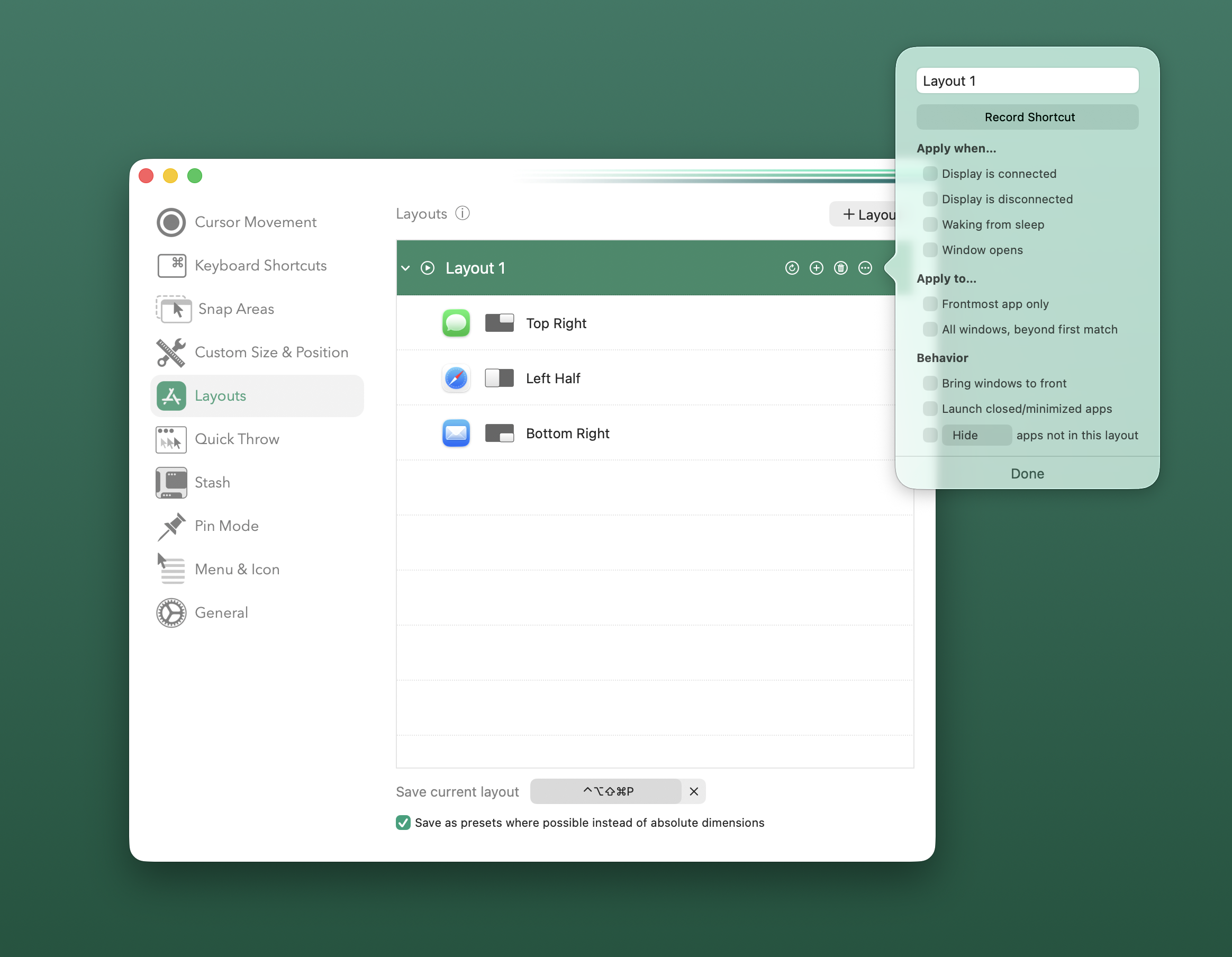
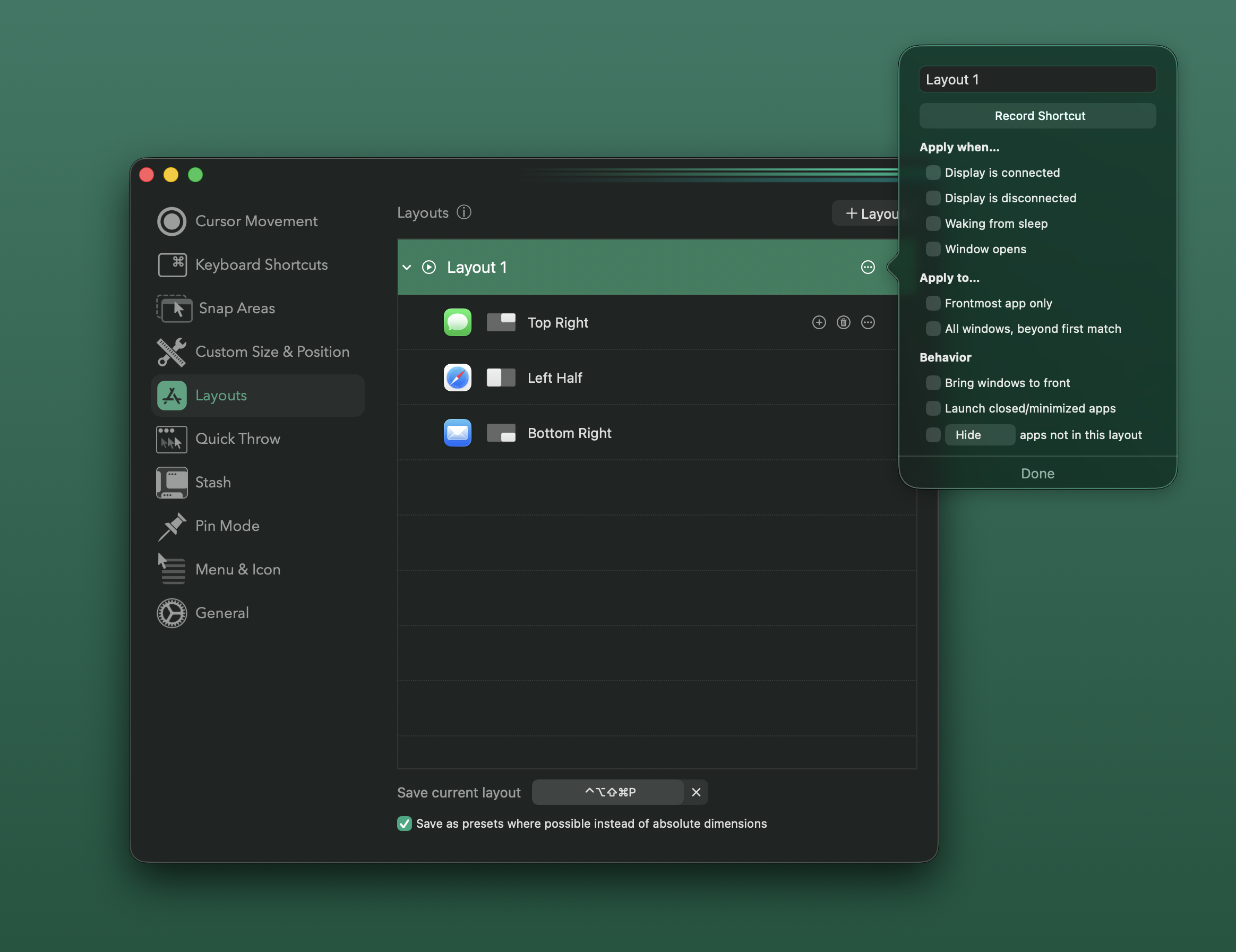
Each layout can be configured with the following:
Name: Enter a name for the Layout that will be used in menus, throughout the app.Keyboard Shortcut- Apply when…
Display is connected,Display is disconnected: When either of these is selected, a desired display can be specified.Waking from sleepWindow opens
- Apply to…
Frontmost app only: This can be used to build a single shortcut that applies a different size/position depending on the frontmost window’s app and/or window title criteria.All windows, beyond first match: Without this enabled, a layout will apply 1:1 matches for each entry:window. With this enabled, a layout will continue to apply each entry to all remaining windows that match.
- Behavior
Bring windows to front: All matches in this layout will be brought frontmost.Launch closed/minimized appsHide/Minimize/Quit apps not in this layout
Per-window Entry Settings
Section titled “Per-window Entry Settings”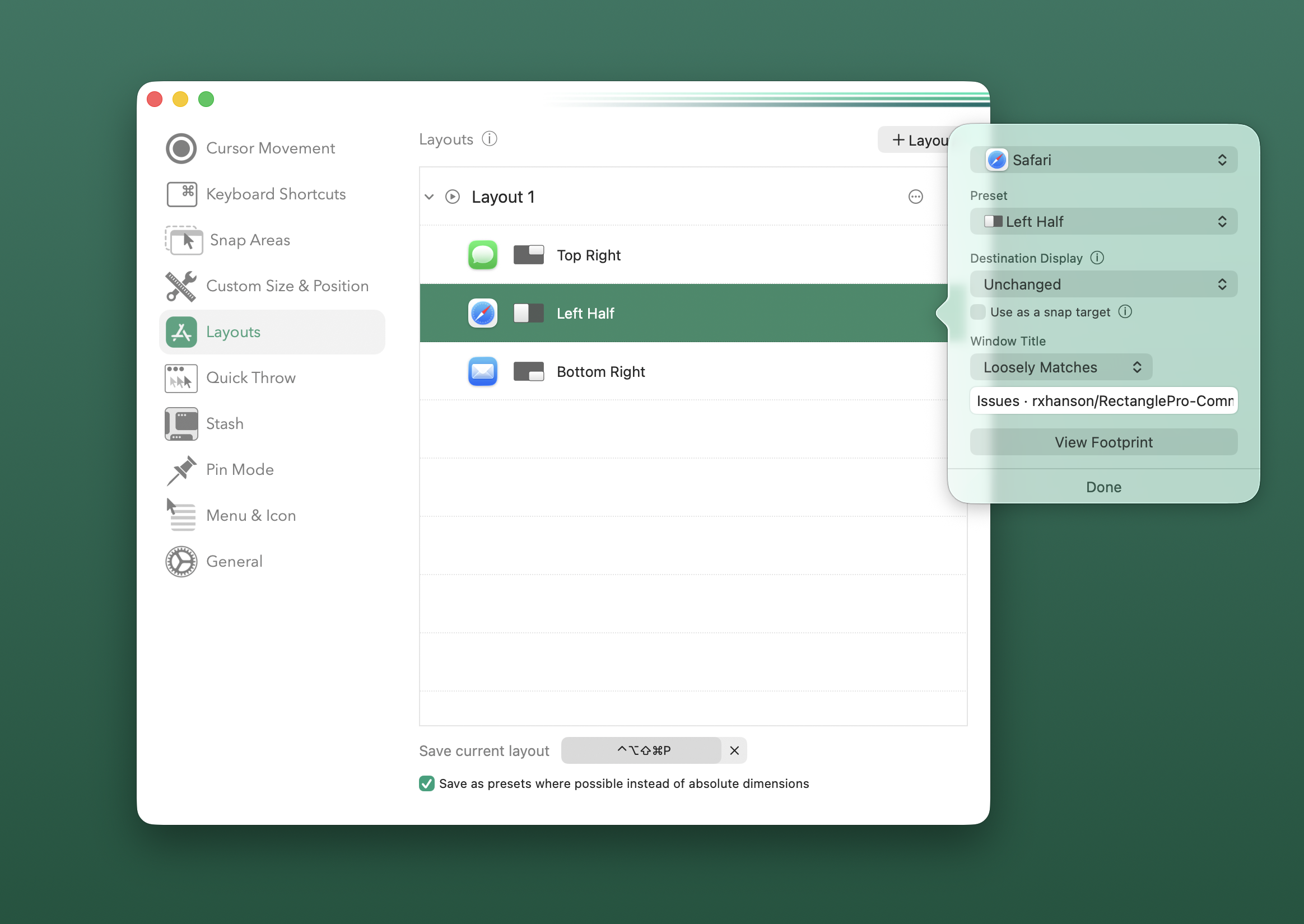
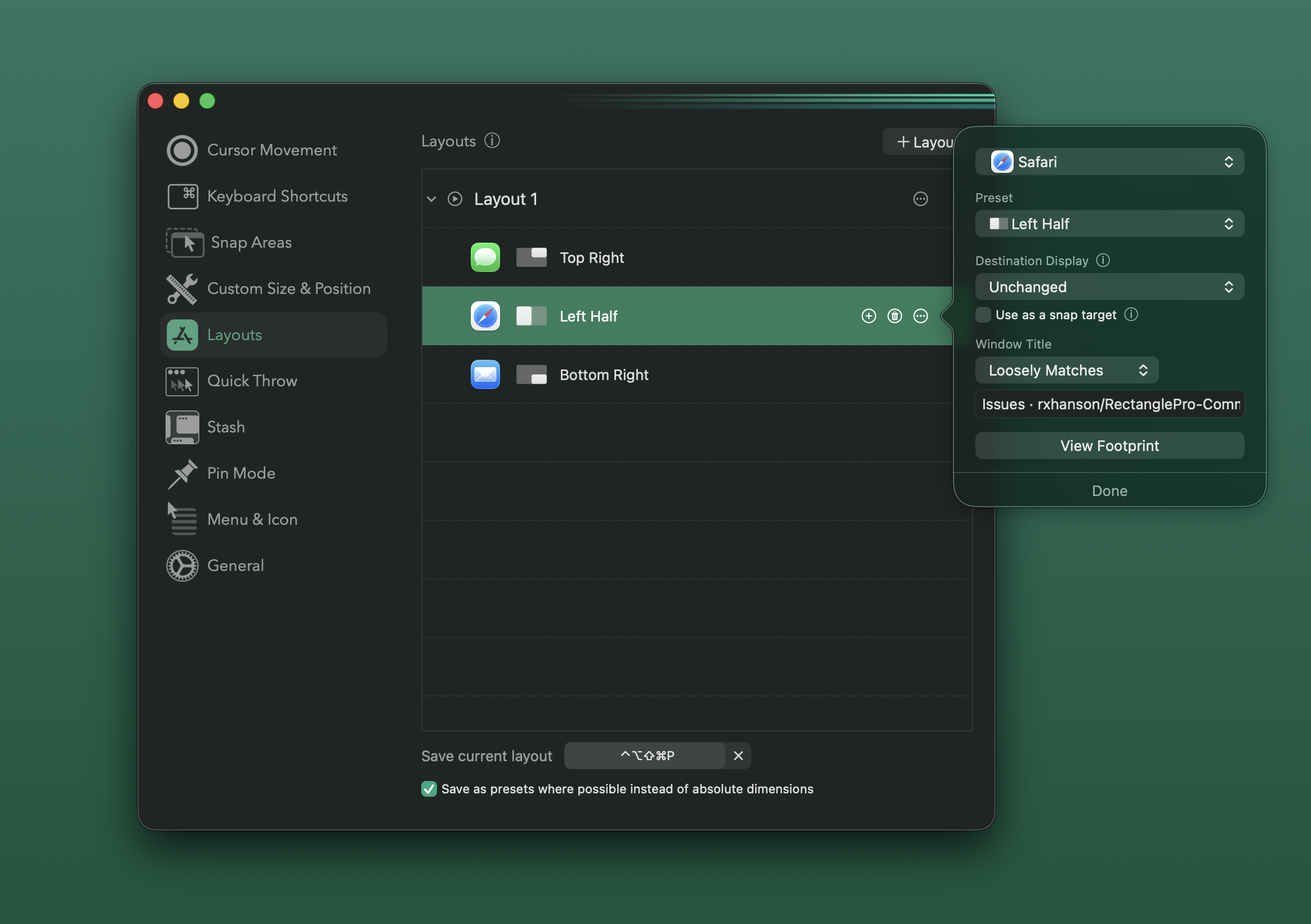
Each entry in a layout has the following available configuration.
-
App: The app that this entry applies to. If set to Global, it will match a window of any app. -
Preset: the window action to be executed for a matching window, i.e.Left Half- If
Custom, No Presetis selected, then theCustom Size & Positionoptions are available:Position: Center, Top, Bottom, Left, Right, Top Left, Top Right, Bottom Left, Bottom Right, Custom Origin, and Center Offset.- Specify the X and Y origin using Custom Origin.
- Specify an offset from the center of the screen using Center Offset.
Size: The width and height of the window.
- If
-
Destination Display: Unchanged, Next, Previous, Display by name (identifier), or by current ordered display number- The ordering of displays for Next/Previous or number is evaluated based on the current layout of the displays, from left to right, top to bottom.
-
Use as a snap target: If enabled, this Custom Size & Position will be used as drag-and-drop targets for snapping. Drag a window to the target area to see the footprint and drop it to snap the window into place. In order to be used as a snap target:- Width and height must be defined.
- Custom positions must have X and Y defined.
- The specified display must not be
nextorprevious.
Unlike Custom Size & Position, Snap Targets created in the Applications tab are associated with the specified Application.
-
Window Title: Only apply this layout entry to windows with a title that matches one of the following conditionsAny: Match on any titleLoosely Matches: If there’s a window that has this exact title or one that very closely resembles it, then it will match. Otherwise, this will match on any remaining window that doesn’t have a better match. This is the default setting when saving a layout, and the current window title will be recorded when the layout is created.Contains Substring: Match on any title that contains the specified substring.Matches Regex: Match on any title that matches the specified regex.
All of the numerical fields for Size and Position can be:
- fractions, whole, or decimal
- ≤ 1 for % of screen
- > 1 for pixels
- left blank to keep the current dimension unchanged
The View Footprint button allows you to show the footprint of the projected size/position of the entry.
Icons are automatically generated for the Custom Size & Position configured.
Repetitions
Section titled “Repetitions”Similar to Custom Size & Position, press the + on an existing Layout window entry to add another entry that will be executed when the command to trigger the Layout is repeated.